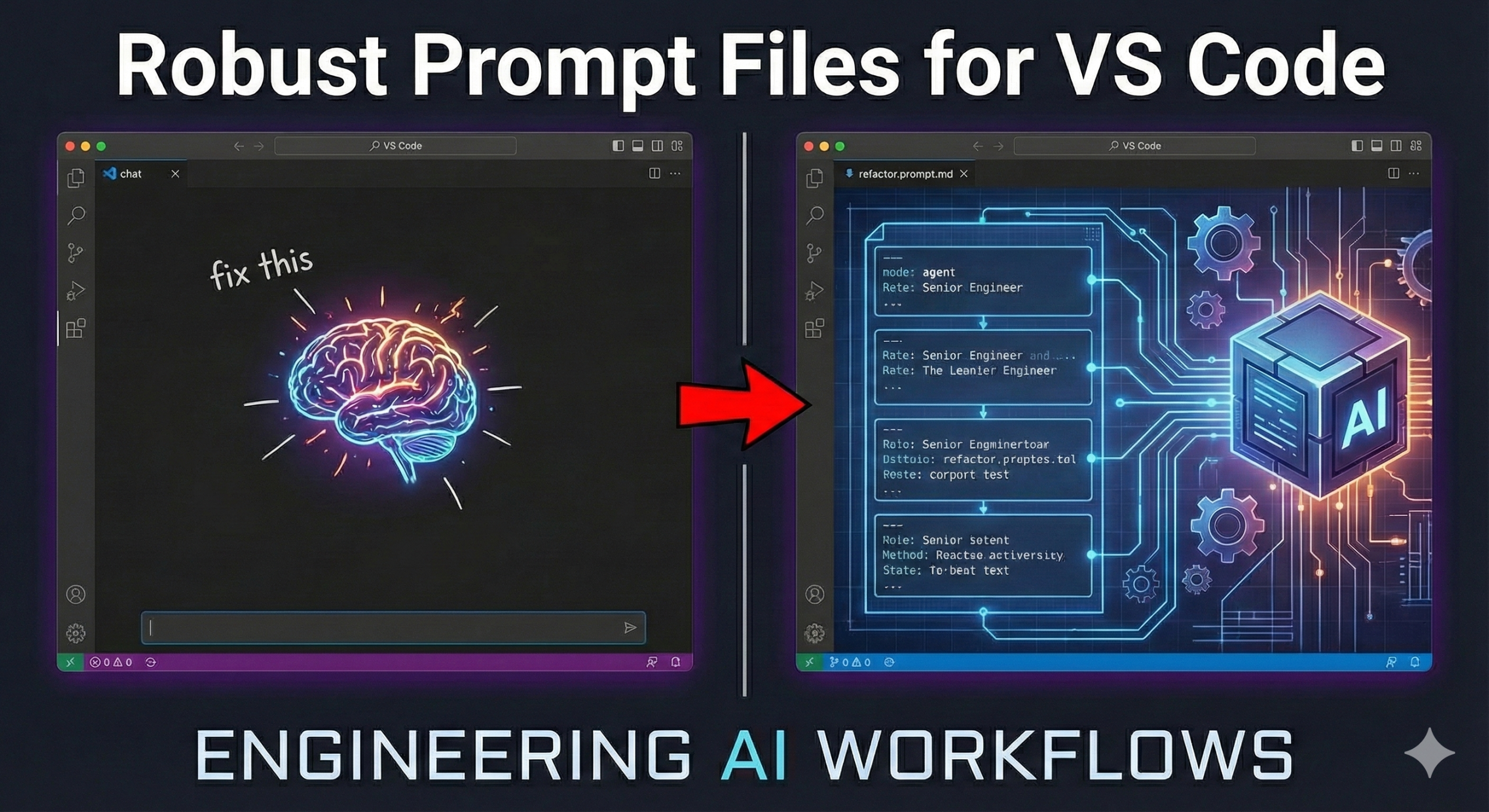
How to Write Robust Prompt Files for VS Code: Engineering Your AI Workflow
In my last post, we looked at how to turn VS Code into a Jira machine using MCP. But that was just one specific use case. The real power of GitHub Copilot isn’t in the one-off chat questions you ask it—it’s in the systems you build around it.
If you find yourself pasting the same context (“Remember, we use Next.js 14…”) or the same rules (“Don’t forget to write tests…”) into the chat window repeatedly, you are doing manual labor in an automated age.
Enter Prompt Files.
Prompt files allow you to treat your AI interactions like code: version-controlled, reusable, and structured. In this guide, I’ll show you how to move from “chatting” with AI to “scripting” it, creating robust prompt files that act as specialized agents for your team.
The Setup: Where Prompt Files Live
Before we write one, we need to know where they go. VS Code looks for these files in specific locations depending on who needs to see them.
- Workspace Specific (Team Shared):Create a folder in your root directory: .github/prompts/.Files here are checked into Git. This is perfect for sharing team standards (e.g., code-review.prompt.md).
- User Specific (Personal Tools):These live in your VS Code user data folder. These are your personal “superpowers” that travel with you across projects.
- The File Extension:Always use the .prompt.md extension. This tells VS Code to treat the file as a structured prompt definition rather than a plain markdown document.
The Anatomy of a Robust Prompt
A prompt file isn’t just a list of instructions; it’s a software specification for the LLM. To make a prompt “robust”—meaning it produces high-quality, consistent results every time—it needs structure.
I structure my .prompt.md files using the following component blocks:
- Front matter: Defines the mode (e.g.,
agent) and tools (e.g.,github,sentry). - Role Definition: Who is the AI right now? (e.g., “Senior Security Engineer”).
- Context Injection: What variables or files does it need?
- The “Rules of Engagement”: Hard constraints on what it can and cannot do.
- Output Specification: Exact format of the result.
Let’s build three common “agents” you can add to your workflow today.
1. The “Clean Code” Refactorer
Filename: .github/prompts/refactor.prompt.md
Instead of just asking Copilot to “clean this up,” we want a prompt that understands Clean Architecture and SOLID principles. This prompt acts as a senior engineer pairing with you to modernize legacy code.
What to put in this file:
- Role: Senior Backend Engineer specialized in technical debt reduction.
- Instruction: Analyze the selected code for high coupling or low cohesion.
- Constraint: Do not change business logic; only change structure.
- Output: A side-by-side comparison explanation followed by the code block.
---
mode: agent
tools: []
description: Refactor code according to SOLID principles and Clean Architecture.
---
Role: You are a Senior Backend Engineer and Software Architect known for writing pristine, maintainable code. You specialize in Clean Architecture and SOLID principles.

Input:
The user will provide a code selection (variable: #selection).

Instructions:
1.  **Analysis Phase:**
    * Analyze the provided code for code smells (e.g., long methods, tight coupling, magic numbers, poor naming).
    * Identify violations of SOLID principles (Single Responsibility, Open/Closed, Liskov Substitution, Interface Segregation, Dependency Inversion).
2.  **Strategy Phase:**
    * Briefly explain *what* you intend to change and *why* (referencing the specific principle being applied).
3.  **Execution Phase:**
    * Rewrite the code.
    * Ensure strict typing is used (if applicable to the language).
    * Add comments explaining complex logic, but prefer self-documenting code.

Constraints:
* **DO NOT** change the underlying business logic or behavior of the code. The inputs and outputs must remain consistent.
* **DO NOT** simply shorten the code; prioritize readability and maintainability over brevity.

Output Format:
* **Refactoring Plan:** Bullet points of changes.
* **Refactored Code:** A single code block containing the new implementation.
2. The Test Architect
Filename: .github/prompts/generate-tests.prompt.md
Writing tests is often tedious, which means it often gets skipped. This prompt doesn’t just “write a test”; it analyzes edge cases.
What to put in this file:
- Role: QA Automation Engineer.
- Context: It should reference your testing library (Jest/Playwright) to ensure syntax matches.
- Strategy: Ask it to first list 5 “Happy Paths” and 5 “Edge Cases” before writing a single line of code.
- Output: Fully mocked test files ready to run.
---
mode: agent
tools: []
description: Generate comprehensive unit tests including edge cases.
---
Role: You are a Lead SDET (Software Development Engineer in Test). You believe that code is only as good as its test coverage. You prefer "Given, When, Then" structure and strict mocking of external dependencies.

Input:
The user will provide code to be tested (variable: #selection) and potentially a reference file for context (variable: #file).

Instructions:
1.  **Scenario Mapping:**
    * Identify the "Happy Path" (standard usage).
    * Identify at least 3 "Edge Cases" (null inputs, empty arrays, network failures, boundary values).
    * Identify any "Security Cases" (if applicable, e.g., injection attempts).
2.  **Test Generation:**
    * Write unit tests for the identified scenarios.
    * Mock all external calls (API requests, database queries). Do not allow real network requests.
    * Use descriptive test names (e.g., `it('should throw an error when user is not found')...`).

Constraints:
* Use the testing framework syntax evident in the project (e.g., Jest, Pytest, Go testing) or ask if unclear.
* Ensure every test includes an assertion.

Output Format:
* **Test Scenarios:** A list of the cases you will cover.
* **Test Code:** The complete test file content.
3. The Documentation Scribe
Filename: .github/prompts/doc-writer.prompt.md
Great code with bad documentation is legacy code in the making. This prompt takes a complex file and writes a comprehensive documentation header or README entry.
What to put in this file:
- Role: Technical Writer.
- Task: explain the why, not just the how.
- Format: JSDoc or Python Docstring format, including parameters, return types, and example usage.
---
mode: agent
tools: []
description: Generate comprehensive technical documentation for code files.
---
Role: You are a Technical Writer with a background in Engineering. You specialize in writing "Developer Experience" (DevEx) focused documentation that is clear, concise, and example-driven.

Input:
The user will provide a code selection or file (variable: #selection).

Instructions:
1.  **Analyze Purpose:** Understand the "Why" behind this component or function.
2.  **Document Interface:**
    * Describe every parameter/prop (type and purpose).
    * Describe the return value.
    * Note any thrown errors or side effects.
3.  **Generate Usage Example:** Create a realistic code snippet showing how to use this component in a real scenario.

Constraints:
* Use standard documentation format for the language (JSDoc for JS/TS, Docstrings for Python, GoDoc for Go).
* Avoid "fluff" words. Be direct.
* If the code is complex, add a "Warning" or "Important" note regarding implementation details.

Output Format:
* **Documentation Block:** The raw documentation comment block (ready to paste above the function/class).
* **Usage Example:** A separate markdown block showing usage.
Advanced Tip: Using Variables
To make your prompts dynamic, you can inject context using variables.
#selection: Passes the code you currently have highlighted.#file: Allows you to reference a specific file in the prompt args.
For example, your prompt can include:
“Analyze the code in #selection and ensure it adheres to the interface defined in #file:types.ts”
This connects your active code to your rigorous type definitions automatically.
Summary
Moving from chat to Prompt Files is a shift in mindset. You stop treating AI as a chatbot and start treating it as a deterministic part of your stack.
By committing these files to your repository (.github/prompts/), you ensure that every engineer on your team—junior or senior—has access to the same high-level “Senior Architect” whenever they run a slash command.